Hey, SEOs, have you heard of HubSpot's new AEO tool? AEO is Answer Engine Optimization. The tool is in beta, but it's actually in a pretty good spot for you to just jump in and try it out. I want to introduce you to it, walk you through the full workflow, and tell you why I think this is one of the best AEO tools I've seen, because it takes the work a couple of steps further than most do.
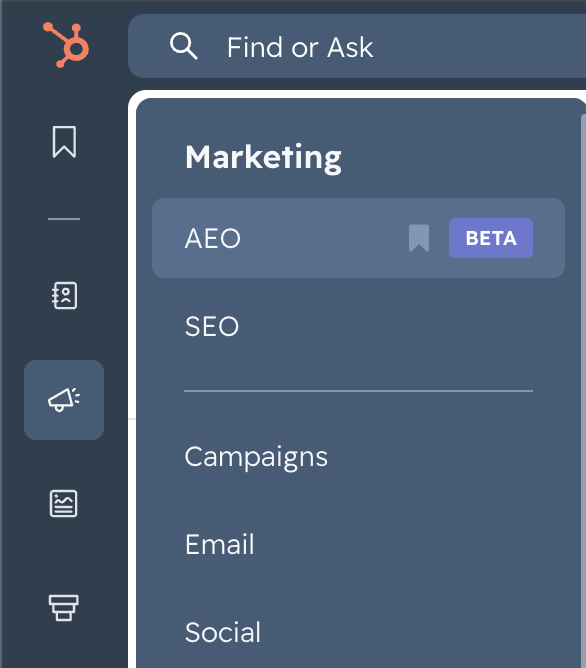
One quick note: I had to use screenshots for this walkthrough. I'd take you right into HubSpot, but I have to protect client data, and I'm not able to blur things while I'm recording video. You can find the tool in the far left menu. Go to Marketing, and AEO is right at the top.
Most tools stop at the data
Most tools kind of stop at the data portion. You might be able to track some prompts, get some citation data, see your brand visibility, maybe a share-of-voice metric. But the big question with those is: what are you supposed to do with them?
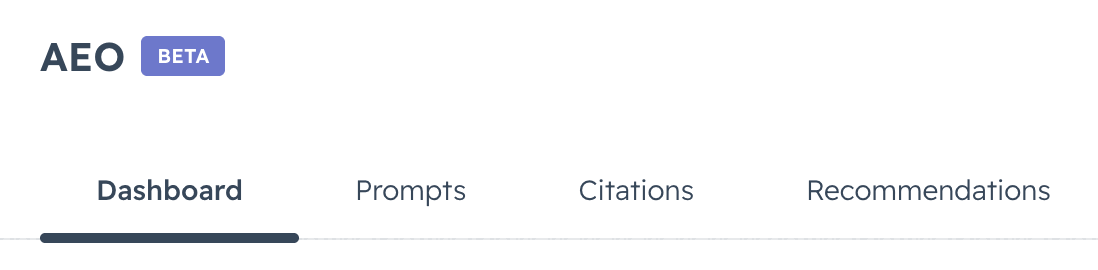
"Most tools stop at the data. The final tab here is the big one: recommendations. That's how you make this actionable, and that is so important."
So look at what HubSpot does. First you've got your dashboard, then the prompts you can track, then some citation data. But the final tab is the big one: recommendations. And not only does it recommend things you can do to improve your AI visibility, you can give it the URLs for the content you create so you can track impact. I think it just shows how thoughtful HubSpot has been with this tool. I'm not sponsored, by the way.
Getting set up
When you get started, you're going to sign into your client's account. I think this costs somewhere in the neighborhood of 50 bucks if you want to track 25 prompts. Don't quote me on that, but it's around that price.
Then you're going to set a few things up. You can see the options: the engine, that's going to be ChatGPT, Gemini, Perplexity, and so on. The three I just mentioned are in there by default. You can set your products and services, and HubSpot will have some selections ready for you, plus the option to add some manually.

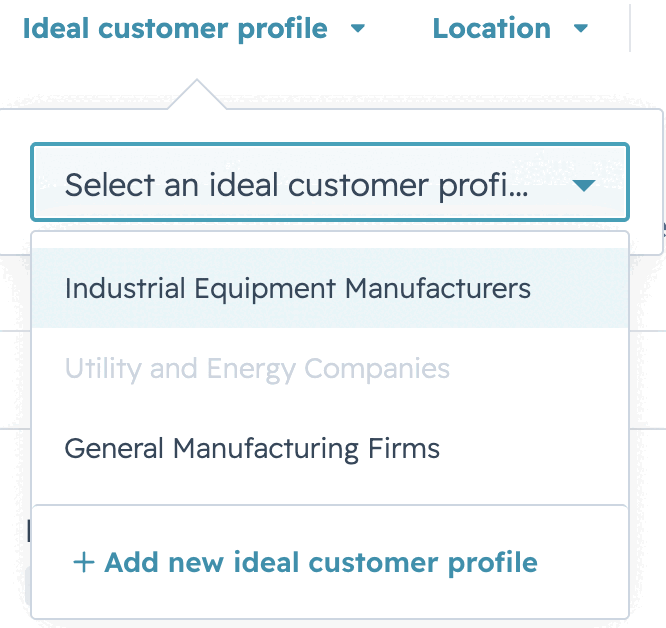
Then you're going to set your ideal customer profile. Same thing here: HubSpot intelligently makes suggestions, and you get the option to add something manually if you want. One other thing during setup that's really important: you're going to set up all the different variations of how your brand could be searched. That's going to be really helpful for the tool.
Adding your prompts
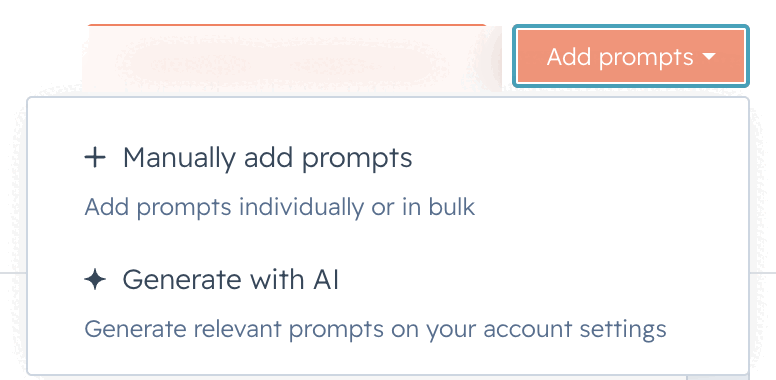
Next, you're going to add some prompts. Like I said, you can do up to 25, and you can do more if you pay more. You can manually add them or generate them with AI. The AI does a really good job. We've tried this on a number of clients at my agency, and the prompts are great, they're high relevance. I personally usually do a mix: about 80% with the AI, and then I'll add a few of my own for a good prompt set.
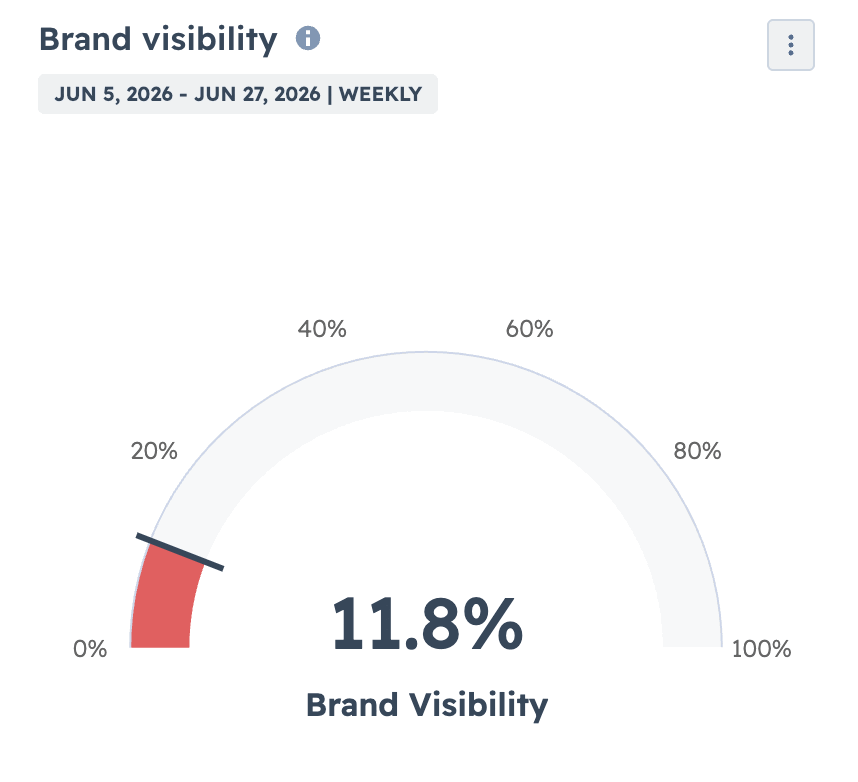
Just a note on prompts. My advice is to pick prompts you haven't won yet. Be aspirational here. We've had clients look at this and panic and say, "Wow, we're doing horribly with our brand visibility on AI search engines." But here's the thing: it all depends on the 25 prompts you pick.
Don't game your own score
You could easily pick 25 prompts you already win, watch the brand-visibility percentage go up, and learn nothing useful. Pick aspirational prompts so you have a goal to reach. Let the visibility come in a little lower before you start the work, then swap prompts out as you start winning them.
The Prompts tab
When you go to the Prompts tab after the dashboard, you can see your 25 prompts. Click on one and you'll go to the right, where you'll see the prompt at the top, then a tab called Answers. That's where you'll see the three engines you selected.
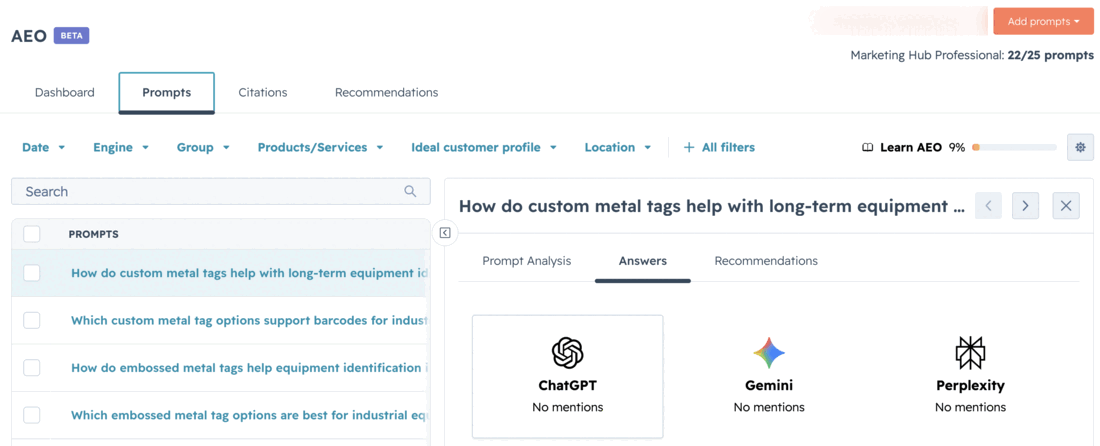
Below that is a little thing that says how many times each prompt has been run. Each one was run on every engine six times, and I really like that, because we know that each time you prompt AI, you get a slightly different output. So it's important to run them multiple times and average it out. HubSpot does that for you. Scroll lower and you can see the actual prompt and the output, so you have a lot of visibility into how you're showing up.
Tip: Because it's still in beta, audit your visibility by hand. On one prompt the tool showed no mentions, but when I scrolled into the actual Perplexity output, the client was right there. Check the raw answers so you have full awareness.
The Citations tab
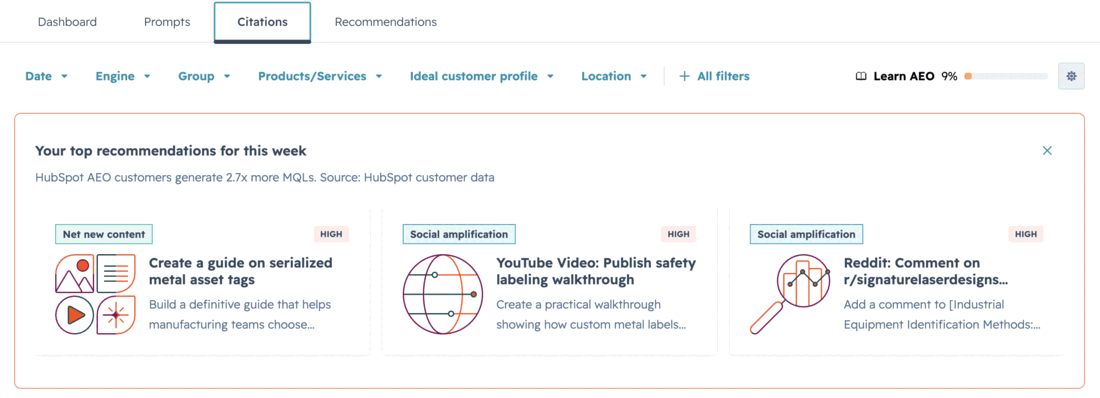
There's another tab after Prompts called Citations, and it has some cool data. It's fairly self-explanatory. I'll be honest, as much as I've used the tool, I don't go to this tab much. It's good to see the data, but I find the recommendations and measuring impact so much more useful, so I'm always in those tabs. This is the one I frequent the least. One thing at the top of the Citations tab is your top recommendations for the week, which I think is really cool, and that naturally brings us into the Recommendations tab.
The Recommendations tab is the real winner
This is the real winner for this AEO workflow within HubSpot. On the left side you can select a recommendation type: owned content, social recommendations, outreach recommendations. These are all really cool, and they differ a lot from client to client, which I think is really encouraging.
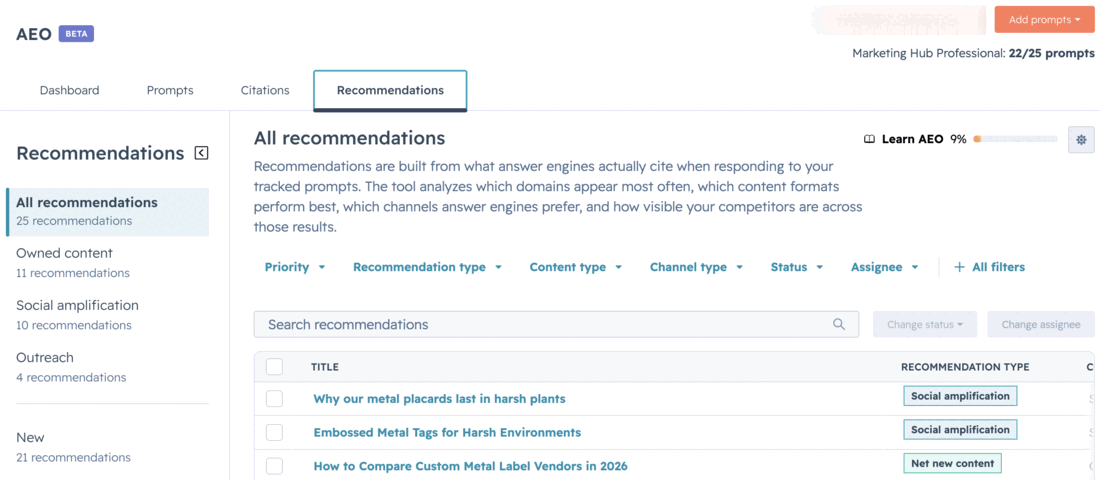
What would be a bummer is if you looked at a bunch of clients and started to see the pattern, where the recommendations got predictable. But honestly, from client to client, they've been varied. Some of them are throwaway. It's still a tool that's kind of automated and doing it on its own, so there's going to be some throwaway stuff, and you have to vet everything carefully. But there are some gold nuggets in here, and that's where the value comes in.
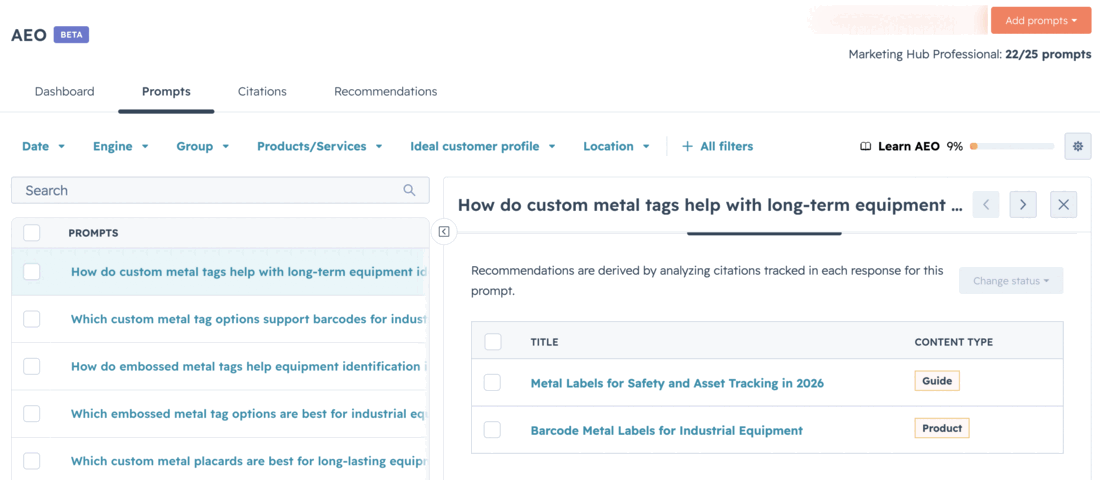
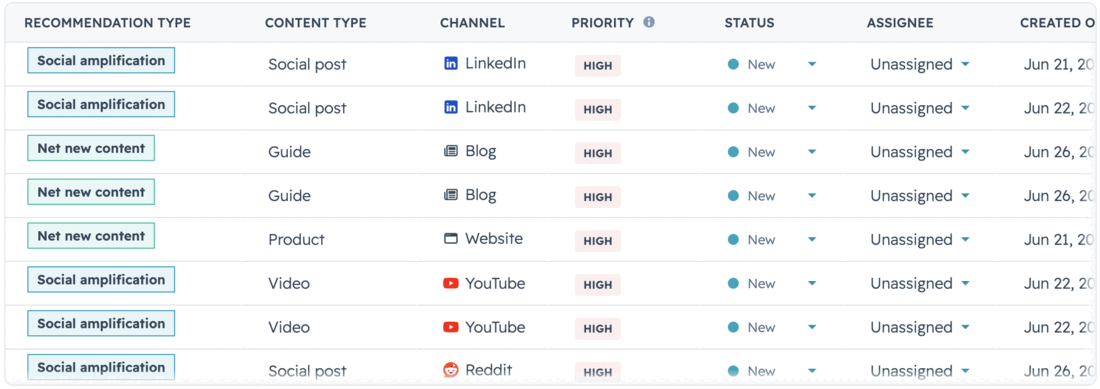
On the All Recommendations tab, you can see the table on the right: the title of the recommendation and what type it is. There's social amplification, new content for your website, outreach, all that.
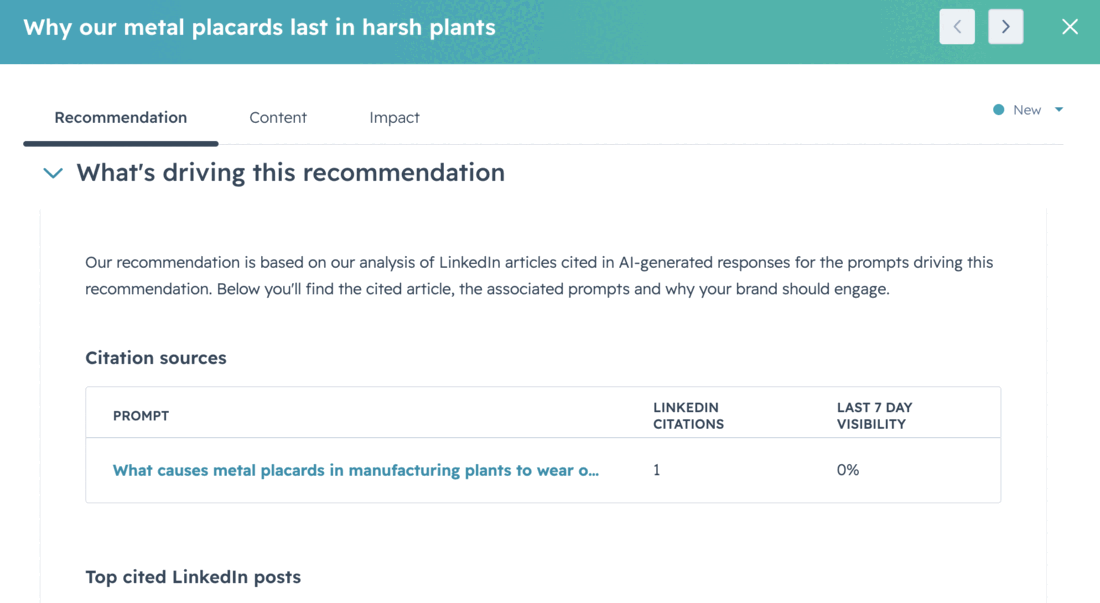
When you click into an individual recommendation, it gives you the suggested content: a title, a little summary, and who you're targeting.
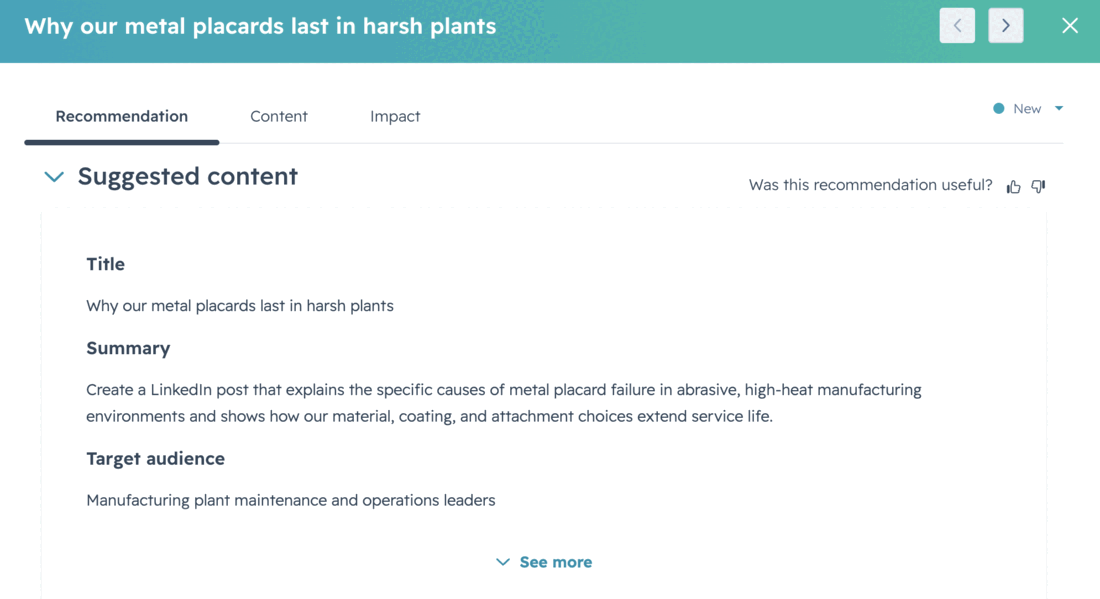
You can click See More and it'll tell you why it made the recommendation. I really love that. It shows you what's driving it: the prompt, and if you scroll down a little more, what was cited. In this case, it was a recommendation to do a LinkedIn post, because for that prompt, LinkedIn was cited very prominently.
Tracking impact
This is where you give it a URL that you can track. The tool will track it, and you can measure impact. That's super important with SEO. There's a lot of discussion in the AI search and AEO space that is purely theoretical. It sounds logical, it sounds good, but we have a lot of testing to do as a community, and it's this kind of feature that's going to help us really prove the value of these recommendations.
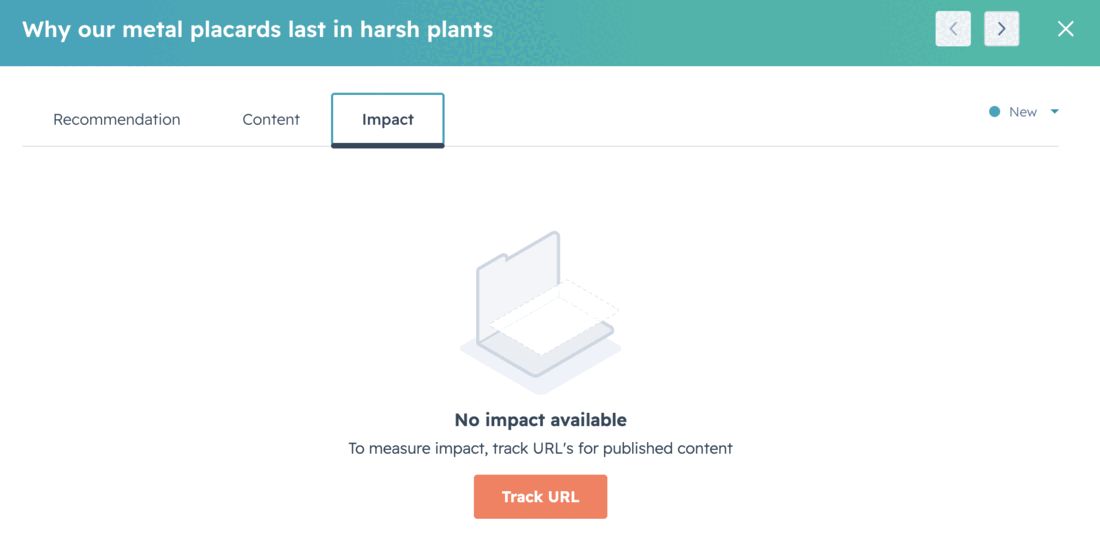
Was it a good one? Should we pursue more? Or did it fall flat? The more you do this, the more insight you gain over time into what works and what simply doesn't.
The full cycle
So the full circle within HubSpot is this: get your setup in place, see some great data, and the tool uses that data to put together a set of recommendations. It makes the data actionable. It's very specific on the recommendations, it's quite varied in terms of content types, and it includes outreach, which I think is fantastic, because that's the first-party and third-party signals you need to be building as a brand. And then the big one: you can track impact to see what works and make these recommendations prove themselves out in the wild.
That's the new HubSpot AEO tool. I encourage you to give it a try if your clients are willing to pay for it. I think it's great for rounding out your strategies and adding to those core SEO initiatives you might have going.
Why HubSpot's AEO tool stands out
- It doesn't stop at the data. Dashboard, prompts, and citations are table stakes. The Recommendations tab is what makes the data actionable.
- Pick aspirational prompts. Tracking 25 prompts you already win inflates your score and teaches you nothing. Choose prompts you haven't won yet so you have a goal to reach.
- Trust the workflow, vet the output. Each prompt runs six times per engine and gets averaged. The recommendations vary by client, but some are throwaway, so vet everything carefully.
- Track impact with a URL. Feed the tool the content you create and measure whether a recommendation actually moved the needle. That's how we prove what works in AEO.