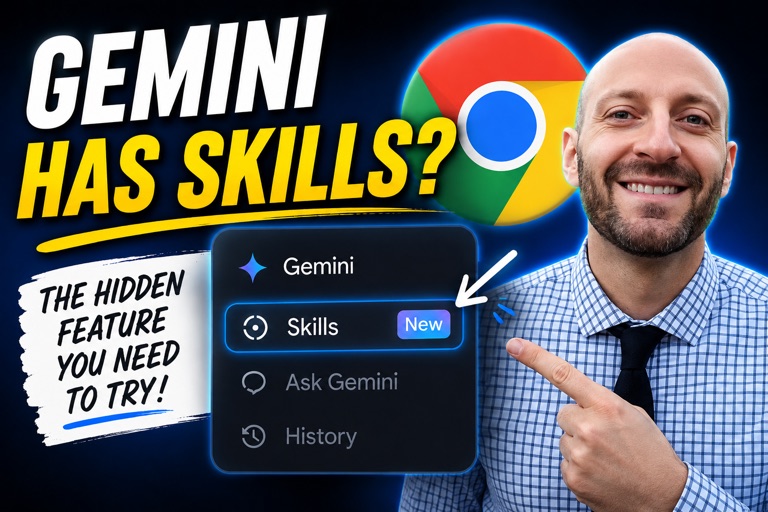
Today I want to show you a feature in Gemini in Chrome that you may not be aware of, but that is super useful if you're an SEO. It's called Skills, and it lets you save your go-to prompts and run them in seconds, right inside Chrome. Here's how it works and three ways I use it in my day-to-day SEO work.
What Are Skills in Gemini in Chrome?
If you open Gemini in Chrome and click the plus sign, you'll see an option to browse skills. That's the whole point here: you can create skills for Gemini in Chrome, and it's incredibly useful if you're used to skills in Claude.
These are not as detailed or powerful. Claude skills can do a lot. They can deploy multiple agents that report back up to a manager or orchestration agent, they can crawl the web, and there's so much you can do with them. The skills in Gemini in Chrome seem more limited. Basically, it's saving prompts that you already have. But that's exactly what makes them handy. There are a couple of workflows I typically do with Gemini in Chrome that were perfect for these skills. I can save them, call them up quickly, and run them really easily.
How to Create a Skill
Creating one is simple. You go to the skills section, click your skills, click add, name your skill, and then drop your instructions or your prompt in. That's it. I've already done this for a couple of mine.
The first is a content comparison skill. It compares the content of multiple pages and shares the most effective elements, like outline sections and multimedia. I put right in the instructions that I want to learn why the content might rank well and get strong engagement, because typically I run this on top ranking pages to try to figure out why they're ranking. It's at least another perspective.
The second is a design comparison skill. This one also runs on multiple pages, and it looks at things like UX and CRO and tells me what the most effective elements of those pages are.
Demo 1: Comparing Design Across Pages
Let's run the design one first. I've got three websites here: wise.com, Miro, and Airbnb. These just showed up on one of those sites that aggregates the best-designed websites.
I come down and click the plus, and I make sure that Miro and Airbnb are also selected so Gemini in Chrome can see them. With them selected, I can choose my skill from the menu, or I can summon it with a forward slash, and there it is. I call it up, run it, and in seconds I have the insights I'm looking for. It starts with Wise and works its way through Miro and Airbnb.
Now, this is AI output, so some of it is going to be throwaway, but some of it is really good. It talks about the immediacy of the calculator that Wise puts in front of users, which is super cool and kind of just screams engagement. It calls out the social proof, and there are all kinds of other insights from the other pages as well.
Demo 2: Comparing Content Across Pages
Next, let's run the content comparison workflow on a couple of Yellowstone National Park guides. This skill is going to tell me what it is about the content that helps it rank well and get good engagement. I'm assuming it gets good engagement because it ranks well, since we know engagement is part of ranking well. I can't confirm that through their internal data, but it's a reasonable assumption, and that's what I want the AI to look for.
I open Gemini, make sure both pages are selected (my National Park Lodges page and the other one), choose the content comparison skill, and run it. Gemini in Chrome makes it so easy, since it's all right there in the same pop-up.
It looks at structural elements and content outlines first. One page focuses heavily on actionable tips, while the other employs an exhaustive, geographic-first approach. Then it gets into multimedia: the Lodges page uses polished, professional imagery, authentic storytelling, and even the power of captions, which is cool. Finally, it covers the trust-building and authority signals on the pages, which are really impactful for readers.
A Third Use Case: Comparing AI Search Studies
There's one more use case I want to share, though I won't demo it here. I use it a lot, especially with the number of AI search studies coming out these days. I'll open up multiple studies and run a skill that compares and contrasts them. It tells me where there's consensus, where there's disagreement, and it draws out insights that can only be gathered from reading all of the articles together.
Final Thoughts
All three of these use cases are fantastic if you're an SEO or a marketer. If you hadn't seen that Gemini in Chrome has this Skills feature, I hope this was useful, and I hope you'll play around with it. And if you have another use case, let me know in the comments. I'm sure other people would like to see it as well.